
If you want to enable auto update on your WordPress to keep your site secure and consistently updated, WordPress provides a built-in background update system that has existed since WordPress 3.7. Core updates, plugins, themes, and translation files can all be configured to update automatically, either through wp-config.php or through filters in a custom plugin.
This guide walks you through every verified method WordPress supports, along with examples for enabling, disabling, or fine-tuning the automatic updater.
How Automatic Background Updates Work in WordPress
WordPress supports four types of automatic updates:
- Core updates
- Plugin updates
- Theme updates
- Translation updates
Core updates have three sub-types:
- Development (“bleeding edge”) updates
- Minor updates (maintenance + security)
- Major updates
By default:
- Prior to WordPress 5.6, only minor updates and translations were enabled automatically.
- Starting in 5.6, new installations have both major and minor core updates enabled.
- Sites already running a development build update automatically to newer development builds.
Configuring Auto Updates via wp-config.php
You can control core auto updates globally using constants.
Disable All Automatic Updates
If you want to turn off every type of automatic update (core, plugin, theme, and translations):
define( 'AUTOMATIC_UPDATER_DISABLED', true );
This disables the entire automatic updater system.
Configure Core Auto Updates
The main constant to control core updates is:
define( 'WP_AUTO_UPDATE_CORE', true );
It supports three valid values:
1. true
Enables development, minor, and major core updates.
2. false
Disables all core updates.
3. 'minor'
Enables minor updates only.
Disables major and development updates.
Default behavior:
- Development sites default to
true. - Other sites default to
'minor'. - New installations (from WP 5.6 onward) default to
true.
Configuring Auto Updates via Filters (Recommended for Fine-Tuning)
Filters offer the most control and should be placed in a must-use plugin, not in wp-config.php.
Disable All Automatic Updates with a Filter
add_filter( 'automatic_updater_disabled', '__return_true' );
Enable All Core Updates
add_filter( 'auto_update_core', '__return_true' );
Enable or Disable Specific Core Update Types
WordPress provides individual filters for all three core update categories.
Enable development updates:
add_filter( 'allow_dev_auto_core_updates', '__return_true' );
Enable minor core updates:
add_filter( 'allow_minor_auto_core_updates', '__return_true' );
Enable major core updates:
add_filter( 'allow_major_auto_core_updates', '__return_true' );
Use __return_false to disable instead.
Allow Updates Even in a VCS Checkout
If WordPress detects .git, .svn, .hg, etc., it normally blocks automatic updates.
To ignore this:
add_filter( 'automatic_updates_is_vcs_checkout', '__return_false', 1 );
Plugin & Theme Automatic Updates
By default, automatic plugin/theme updates only occur in special security-critical cases determined by the WordPress.org API.
To take full control:
Enable automatic updates for all plugins:
add_filter( 'auto_update_plugin', '__return_true' );
Enable automatic updates for all themes:
add_filter( 'auto_update_theme', '__return_true' );
Use __return_false to disable all plugin or theme updates entirely.
Enable Auto Update for Select Plugins Only
You can target specific plugins by checking their slug:
function auto_update_specific_plugins( $update, $item ) {
    $plugins = array(
        'akismet',
        'buddypress',
    );

    if ( in_array( $item->slug, $plugins, true ) ) {
        return true; // Always auto-update these.
    }

    return $update; // Default behavior for others.
}
add_filter( 'auto_update_plugin', 'auto_update_specific_plugins', 10, 2 );
Translation File Updates
Translation updates are enabled by default.
To disable them:
add_filter( 'auto_update_translation', '__return_false' );
Disable or Customize Core Update Emails
Disable all update notification emails:
add_filter( 'auto_core_update_send_email', '__return_false' );
This filter also allows conditional logic based on:
$type(success, fail, critical)$core_updateobject$result(or WP_Error)
Managing Automatic Updates With a Plugin
If you prefer a simpler, more visual way to control updates on your WordPress site, using a plugin is one of the easiest approaches, and Easy Updates Manager is the go-to solution for thousands of site owners.
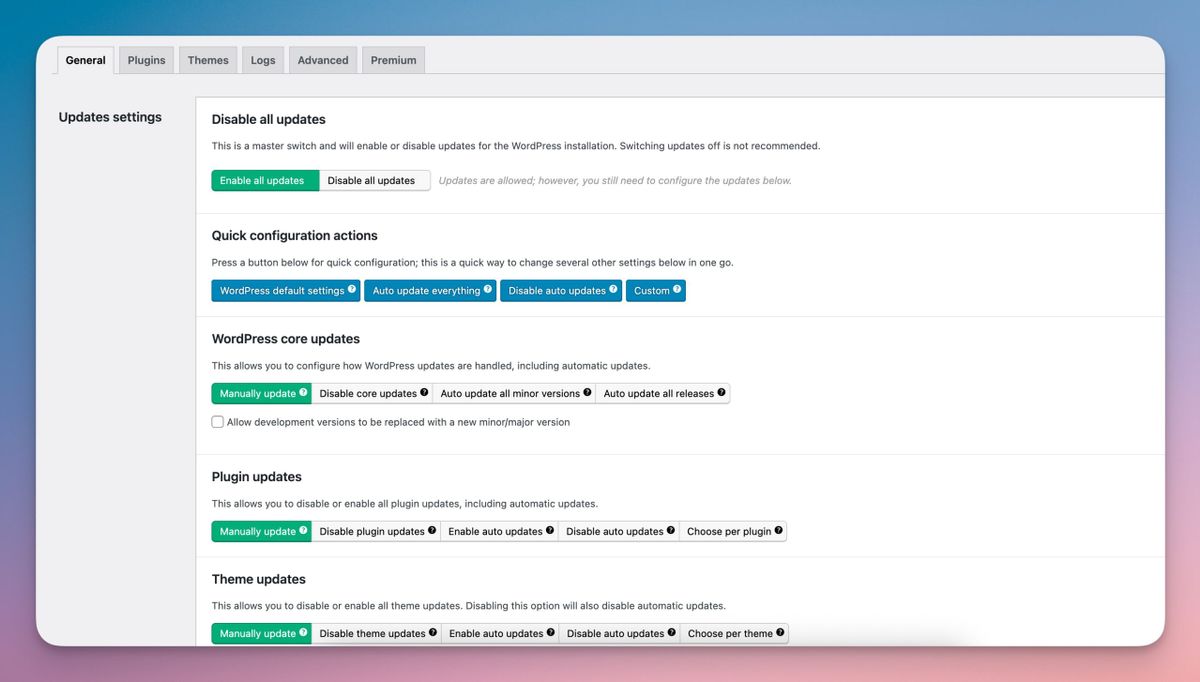
With just a few clicks, you can enable or disable:
- WordPress core updates
- Theme updates
- Plugin updates
Conclusion
WordPress offers a flexible and robust automatic update system that you can configure globally or fine-tune with precision. Whether you prefer to:
- enable all core updates,
- restrict updates to minor versions only,
- auto-update selected plugins or themes, or
- disable automatic updates entirely,
you have full control to shape the updater around your workflow and risk tolerance.
If you’re worried about what happens when an update causes a conflict or something breaks, that’s where our maintenance service becomes invaluable. We monitor your site, apply updates safely, and fix issues proactively, often before you even notice something’s wrong. This way, you get all the benefits of automatic updates without the stress or downtime.
